
Introduction
An unexpected change in your iPhone’s battery icon color can often lead to confusion. When users encounter a yellow battery icon, it’s natural to wonder about its significance. This color change is not an anomaly but a feature designed to help manage your iPhone’s energy consumption effectively. Understanding this feature better will aid in maintaining your iPhone’s overall battery health and performance. Here, we will explore why this yellow indicator appears, what it represents, and how you can make the most of it.
What Does the Yellow Battery Icon Signify?
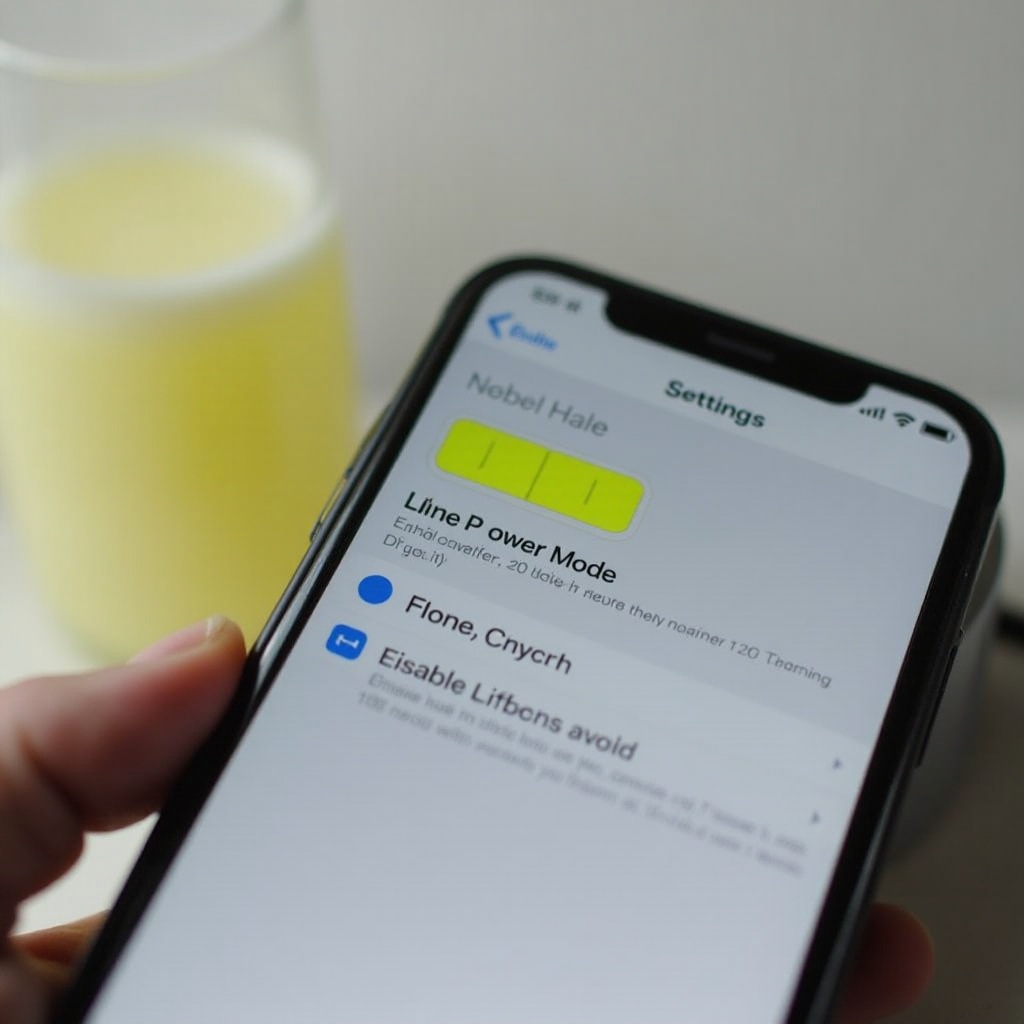
When you notice the yellow battery icon, it indicates that your iPhone is in Low Power Mode. This mode is triggered to help extend battery life by reducing your device’s energy consumption. It adjusts several features and functions to conserve power, such as reducing visual effects, limiting background app refresh, and diminishing mail fetch frequency. The change to yellow is a visual cue to alert users of this change without the need for a detailed notification. This mode serves as a useful tool for individuals who find themselves frequently on the go or those who need to make the most out of limited battery life.
Activation and Functionality of Low Power Mode
Low Power Mode is automatically suggested when your iPhone’s battery dips to 20%, prompting you to activate it seamlessly to extend battery life until you’re able to charge. Once activated, it remains on until your iPhone reaches approximately 80% charge, at which point it automatically disables to restore full functionality. Beyond the automatic prompt, users can manually enable Low Power Mode at any time through Settings or via the Control Center. Interestingly, Low Power Mode doesn’t just conserve power by dimming the screen and affecting performance. Charging efficiency can also be enhanced—a point explored in the following section.
Impacts of Charging While In Low Power Mode
Charging your iPhone while it’s in Low Power Mode can offer several advantages. With reduced background activity, your device may charge quicker due to fewer processes demanding power. This efficiency is particularly helpful when you need an effective charge in a short amount of time. Some users may worry whether this practice affects battery health negatively. However, using Low Power Mode during charging is generally safe, offering a balance between powering the phone and ensuring an expedited charge. The system’s adaptations do not harm the battery, allowing users flexibility in managing their device’s power needs.
How to Enable and Disable Low Power Mode
Enabling and disabling Low Power Mode is straightforward:
- Via Settings:
- Go to ‘Settings.
- Scroll down and tap ‘Battery.
-
Toggle the ‘Low Power Mode’ switch on or off.
-
Via Control Center:
- Access the Control Center by swiping down from the top-right corner.
- Tap the battery icon to toggle Low Power Mode on or off.
This ease of access ensures you can manage your device’s power settings without hassle. Understanding how to quickly turn this mode on or off helps you adapt to changing battery needs throughout the day.
Tips for Optimizing iPhone Battery Health
Maintaining long-term battery health requires more than just using Low Power Mode. Here are essential tips to ensure your iPhone battery remains robust:
- Regularly Update iOS: Keep your phone updated with the latest software to improve battery performance by optimizing system operations.
- Manage Background Activity: Reduce the number of apps refreshing in the background via ‘Settings’ > ‘General’ > ‘Background App Refresh.
- Control Brightness and Screen Settings: Lower your screen brightness and use auto-brightness to save power; go to ‘Settings’ > ‘Display & Brightness.
- Enable Optimized Battery Charging: Found in ‘Settings’ > ‘Battery’ > ‘Battery Health & Charging,’ this feature helps reduce battery aging.
- Avoid Extreme Temperatures: Protect your device from excessive heat or cold as extreme temperatures can damage battery cells.
Fostering these habits not only optimizes your current phone usage but also extends the lifetime and efficiency of your iPhone’s battery.
Conclusion
Understanding why your iPhone battery turns yellow when charging is integral to managing your device efficiently. The yellow color signifies Low Power Mode—a beneficial tool for conserving battery and optimizing power usage. By learning when and how to use this feature, coupled with proactive battery health maintenance, your device can remain reliable and efficient over time.
Frequently Asked Questions
Why does my battery turn yellow at random times?
If your battery icon turns yellow unexpectedly, Low Power Mode has been activated, either automatically or manually. Assess if it suits your needs and adjust as necessary.
Does using Low Power Mode affect my iPhone’s performance?
Yes, Low Power Mode reduces battery demand by disabling or slowing functions like background app refresh, visual effects, and mail fetch, causing minor performance trade-offs for extended battery life.
How can I maintain good battery life for my iPhone?
To maintain strong battery life, regularly update your iOS, manage background app activity, adjust screen settings, and avoid exposing your device to extreme temperatures. Enable ‘Optimized Battery Charging’ to reduce battery wear.