Introduction
Beats headphones, renowned for their outstanding sound quality, sometimes encounter frustrating connectivity issues with Mac computers. If your Beats refuse to connect to your Mac, you’re not alone. This guide is designed to help you diagnose and fix these connectivity challenges seamlessly. By following our detailed and structured approach, you can quickly restore the connection between your devices and enjoy uninterrupted audio experiences once again.
Preliminary Checks Before Troubleshooting
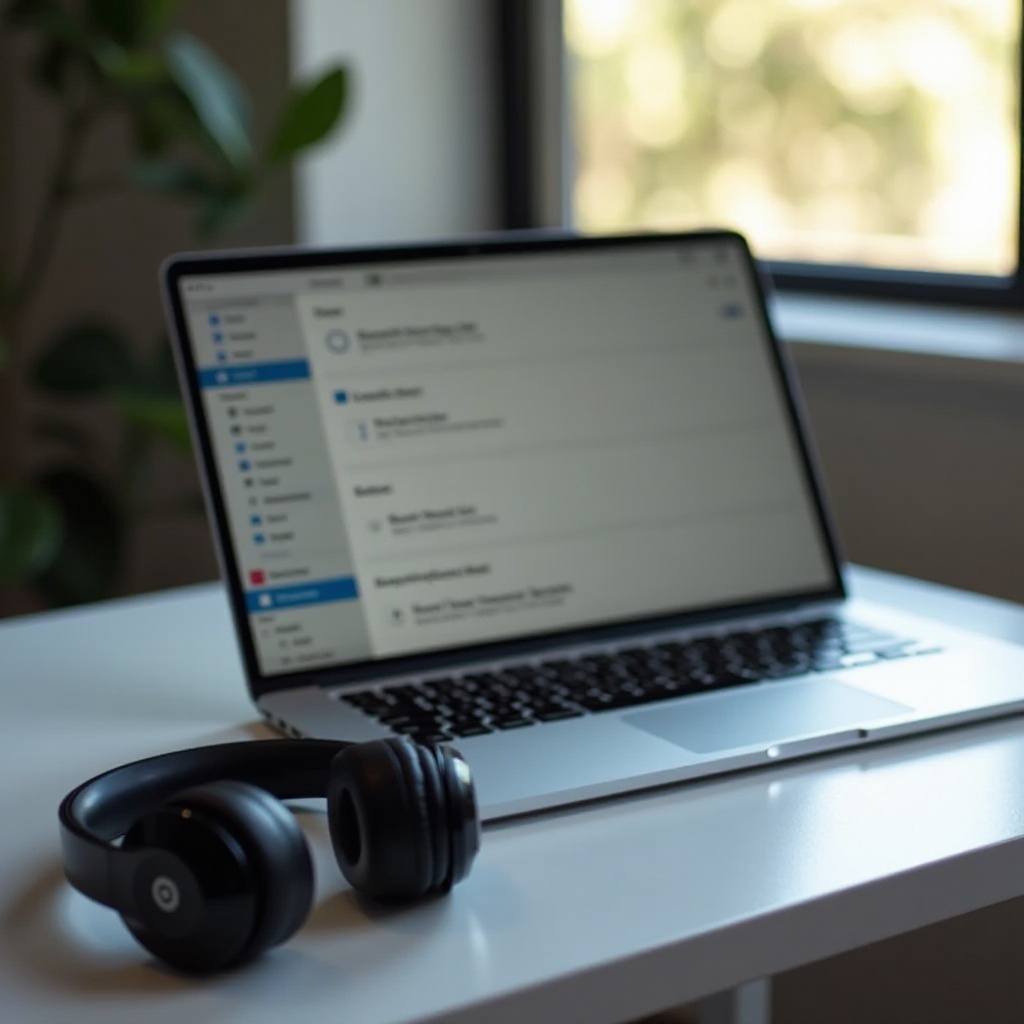
Before diving into more complicated solutions, start with essential checks that are often overlooked. First, ensure your Beats headphones are fully charged, as a low battery can hinder connectivity. Confirm that Bluetooth is enabled on both your Mac and Beats. This basic setup step is often missed, leading to connection issues. Lastly, make sure that your devices are within range and free from obstructions. By performing these straightforward checks, you can eliminate some of the most common connectivity barriers.
Basic Troubleshooting Steps
Once the basics are covered, move on to simple troubleshooting actions that can resolve many issues. Here is what you should try:
1. Forget the Beats in Bluetooth settings: On your Mac, go to Bluetooth settings, remove your Beats, and then attempt to reconnect them by putting the headphones back into pairing mode.
2. Restart your devices: Power off both your Mac and Beats headphones, wait for a few moments, and then reboot. This simple action can often clear minor glitches.
These basic steps are an excellent starting point and frequently solve minor issues without delving into complex solutions.
Advanced Troubleshooting
If the basic steps don’t work, it’s time to explore more advanced solutions. Here are some actions you can take:
– Reset the Bluetooth module on your Mac. To do this, hold the Shift and Option keys while clicking the Bluetooth icon in the menu bar, and select ‘Reset the Bluetooth module’.
– Update your software: Ensure your MacOS and Beats firmware are current with the latest updates, as these often contain important fixes for bugs that affect Bluetooth connectivity.
These advanced troubleshooting steps target more sophisticated software-level issues and are invaluable when basic methods fall short.
Addressing Common Connectivity Problems
Continuing from the advanced methods, let’s address specific issues that frequently affect connectivity:
– Interference: Check for and reduce interference from other wireless devices that might disrupt the Bluetooth connection.
– Compatibility: Ensure that both your Mac and Beats use compatible and up-to-date Bluetooth versions.
Handling these common connectivity problems will help in securing a more stable connection, enhancing your overall experience with your devices.
Additional Solutions and Workarounds
If problems persist, consider the following solutions and temporary workarounds:
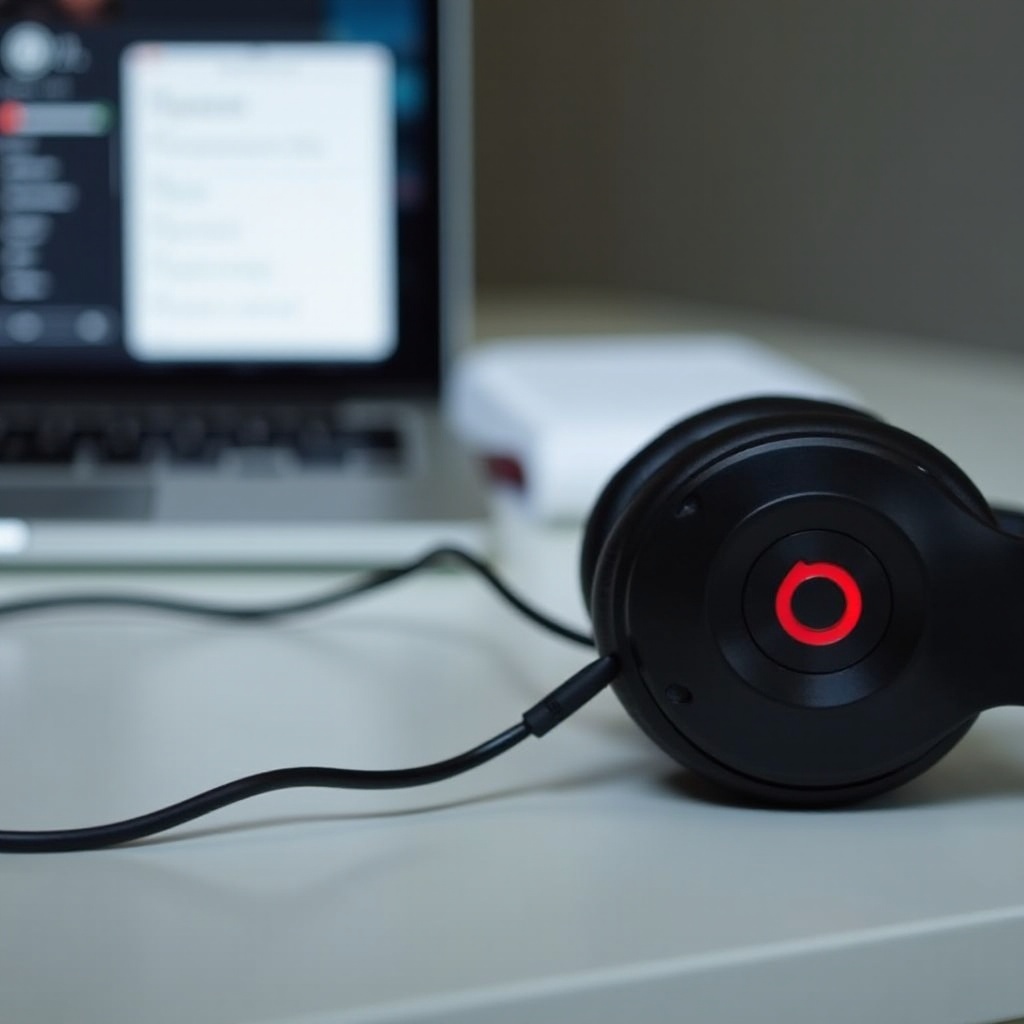
– Utilize a wired connection in situations where wireless connectivity issues cannot be immediately resolved. This ensures you can continue using your headphones while pursuing further troubleshooting.
– Test your Beats headphones on alternative devices to isolate the issue and determine whether the problem lies with the Mac or the headphones themselves.
These additional strategies offer interim relief and help confirm whether the connectivity issue is related to hardware or software problems.
Preventing Future Connectivity Issues
To avoid facing similar connectivity issues in the future, routine device maintenance and updates are key. Regularly update your Beats and MacOS software to leverage the latest improvements and bug fixes. Additionally, store your devices properly to prevent physical wear and tear which might lead to connection problems over time.
By focusing on these preventative measures, you can ensure a hassle-free connection and enhance the longevity of your Beats headphones.
Conclusion
By summarizing the essential troubleshooting steps, from basic to advanced techniques, this guide empowers you with the knowledge needed to resolve Beats connectivity issues with your Mac. Proactively managing device updates and maintenance will contribute to a smooth and reliable audio experience. Remember, if these efforts do not resolve the issue, professional assistance from Apple or Beats support may be necessary.
Frequently Asked Questions
What should I do if my Beats still won’t connect after troubleshooting?
If repeated efforts fail, it may be time to contact Apple or Beats support for professional repair or guidance on possible hardware issues.
Can software updates affect Bluetooth connectivity?
Yes, updates often resolve existing bugs that cause Bluetooth issues, making it crucial to keep your software current.
How can I check if my Beats headphones are damaged?
Inspect your Beats for visible damage. If none is visible, test the headphones on another device to see if connectivity issues persist.