
Introduction
Navigating Windows 10 printer settings is essential for achieving top-notch printing results. From initial setup to optimizing print quality, understanding these settings can save time and reduce frustration. Whether connecting a new printer or resolving common issues, this guide will break down each step to help you make the most of your printer. By mastering these configurations, you’ll ensure optimal performance and efficiency every time you print.
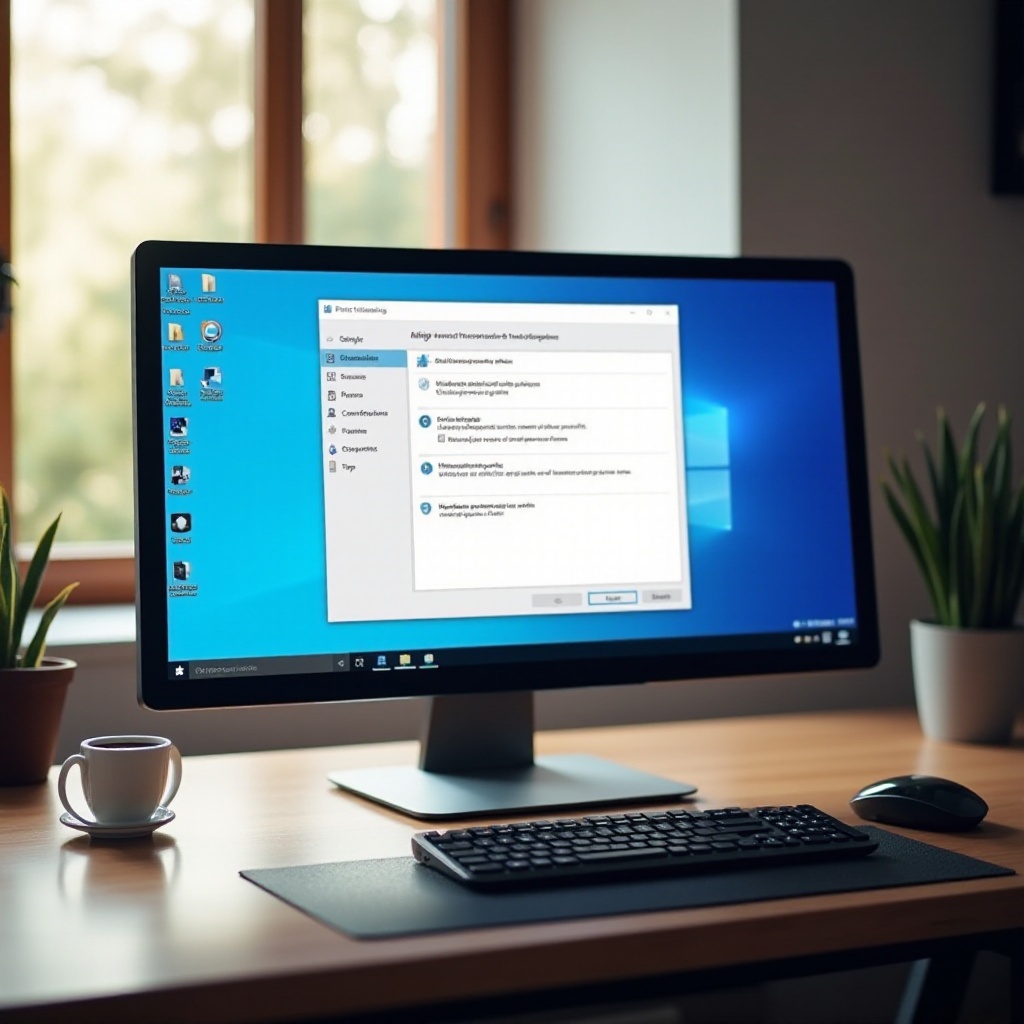
Setting Up Your Printer in Windows 10
A crucial first step to enjoying seamless printing is correctly setting up your printer. This involves connecting your printer to the network and ensuring proper driver installation, setting the stage for smooth operations.
Connecting Your Printer to the Network
- Wireless Printers:
- Start by switching on your printer and navigating to its network settings.
- Choose your Wi-Fi network from the available options and enter the password.
-
On your PC, go to ‘Settings’ > ‘Devices’ > ‘Printers & scanners’ and select ‘Add a printer or scanner.
-
Wired Printers:
- Connect the printer to your PC with a USB cable.
- Windows should detect and install necessary drivers automatically.
Installing and Updating Printer Drivers
Proper communication between your printer and PC depends on drivers. To install or update:
- Visit the printer manufacturer’s site for the latest driver software specific to your model.
- Alternatively, within the ‘Printers & scanners’ menu, select your printer, and opt for ‘Manage’ > ‘Printer properties’ > ‘Update driver.
Configuring Basic Printer Settings
With your printer connected, configuring basic settings helps tailor your printing experience to your needs. Doing so facilitates quicker and more efficient printing tasks.
Accessing the Printer Settings Panel
- Navigate through ‘Settings’ > ‘Devices’ > ‘Printers & scanners.
- Select your printer and hit ‘Manage,’ bringing you to a panel of various settings from print quality to paper type.
Optimizing Print Quality and Output
Achieving superior print quality is a priority, ensuring all documents, whether vital reports or vivid images, meet high standards. Optimization involves tweaking several parameters for consistent results.
Adjusting Print Quality Settings
- Access ‘Printing preferences’ via the printer settings panel.
- Review ‘Quality’ or ‘Resolution’ settings, choosing from options like ‘Draft,’ ‘Normal,’ or ‘High quality’ for your needs.
Customizing Paper and Layout Options
- Within the same panel, examine ‘Paper/Quality’ settings.
- Select appropriate paper type and size for the task.
- Consider layout adjustments such as ‘Two-sided printing’ or ‘Multiple pages per sheet’ for efficient paper usage.
Troubleshooting Common Printer Issues
Even the smoothest setups might encounter glitches here and there. Addressing some of these typical hurdles can help maintain optimal printer functioning.
Resolving Driver Conflicts
If your printer isn’t being detected:
- Open ‘Device Manager’ and check for warnings by the printer driver name.
- Right-click to ‘Update driver,’ or uninstall and reinstall the latest version from the manufacturer’s website.
Fixing Print Queue and Connectivity Problems
Stalled print jobs can be cleared by:
- Opening ‘Control Panel’ > ‘Devices and Printers.
- Right-clicking on your printer and choosing ‘See what’s printing.
- Cancelling any pending tasks.
For connectivity issues, verify the same network for both printer and computer and try restarting both.
Exploring Advanced Printer Settings
To truly master your printer, exploring advanced options can grant added functionality and security benefits.
Managing Printer Security and Permissions
- Dive into printer properties to control who has print access via permissions settings, protecting against unauthorized usage.
Utilizing Advanced Print Options
- Discover features like ‘Print to file’ for PDF creation or ‘Print on both sides’ for effective duplex printing.
- Advanced settings may also support job scheduling or prioritizing on shared printers.
Conclusion
By mastering Windows 10 printer settings, you enhance your overall printing experience, minimizing downtimes and disruptions. Equipped with this knowledge, confidently tackle everything from basic installations to complex troubleshooting. As a result, you maximize your printer’s capabilities and enjoy efficient, high-quality printing.
Frequently Asked Questions
How do I find my printer settings on Windows 10?
To locate your printer settings, go to ‘Settings’ > ‘Devices’ > ‘Printers & scanners,’ choose your printer, and click ‘Manage.’
Why is my printer not recognized in Windows 10?
Ensure your printer is on and connected to the same network as your PC. Updating or installing drivers from the manufacturer’s website may resolve compatibility issues.
How can I improve print quality on a Windows 10 printer?
Enhance print quality by selecting higher resolution options in ‘Printing preferences’ and using suitable paper types for your tasks.