Introduction
Alexa-enabled devices are indispensable for their convenience in daily tasks, all powered by voice commands. However, their functionality hinges on a reliable internet connection. Whether you are upgrading your router or experiencing network issues, it’s essential to know how to change your Alexa’s internet settings for uninterrupted service.
Why a Stable Internet Connection is Crucial for Alexa
A solid internet connection is the backbone for smart devices, including Alexa. With an unreliable connection, tasks such as streaming music, controlling smart home appliances, or responding to queries can suffer disruptions. These interruptions diminish the overall user experience, manifesting as slow responses or unrecognized commands. Thus, maintaining robust network connectivity is vital for seamless Alexa performance.
Understanding this importance lays the groundwork for making necessary changes to your network settings for Alexa.
Preparing for the Change: What You Need
Before you change your Alexa device’s internet connection, ensure you have the necessary information and equipment:
-
Checking Current Network Settings: Review your existing network configuration. Access your router’s settings and note details such as the SSID and password.
-
Gathering Necessary Details: Have your new Wi-Fi password ready, and ensure your smartphone with the Alexa app is fully charged and connected to the desired network.
With these preparations, you are set to transition your Alexa to a new internet connection.
Step-by-Step Guide to Changing Alexa’s Internet Connection
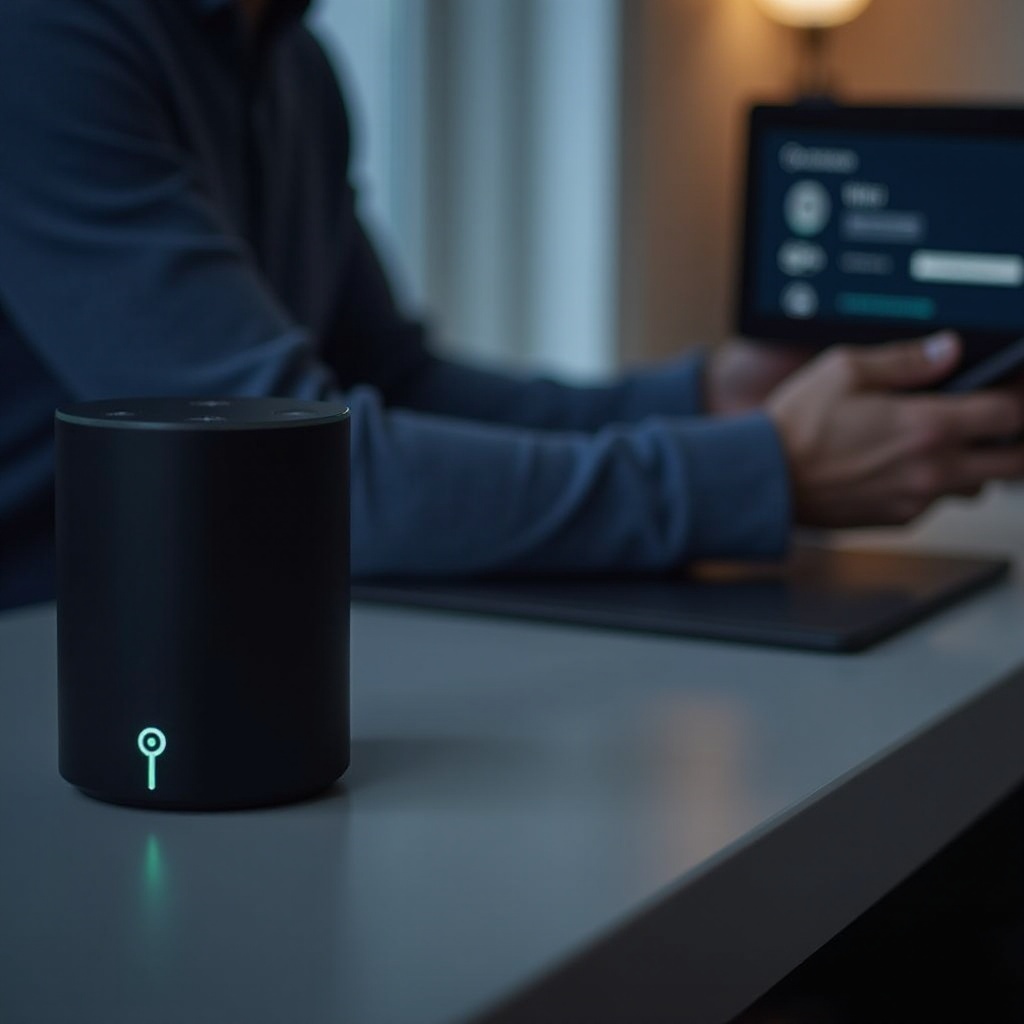
Switching your Alexa’s internet connection is a straightforward process if you follow these steps:
-
Using the Alexa App to Access Device Settings: Launch the Alexa app on your mobile device. Ensure you’re logged into the Amazon account associated with your Alexa device.
-
Disconnecting from the Current Network:
- Go to ‘Devices’ in the app.
- Choose the Alexa device that you want to update.
- Tap ‘Change’ next to the Wi-Fi Network option.
-
Follow the prompts to disconnect.
-
Connecting to a New Network:
- Alexa will now ask you to select a new network.
- Choose your new Wi-Fi from the list.
- Enter the Wi-Fi password when prompted.
- Confirm settings, and Alexa will finalize the connection.
After a successful connection, you might face initial issues. Let’s address these potential problems in the next section.
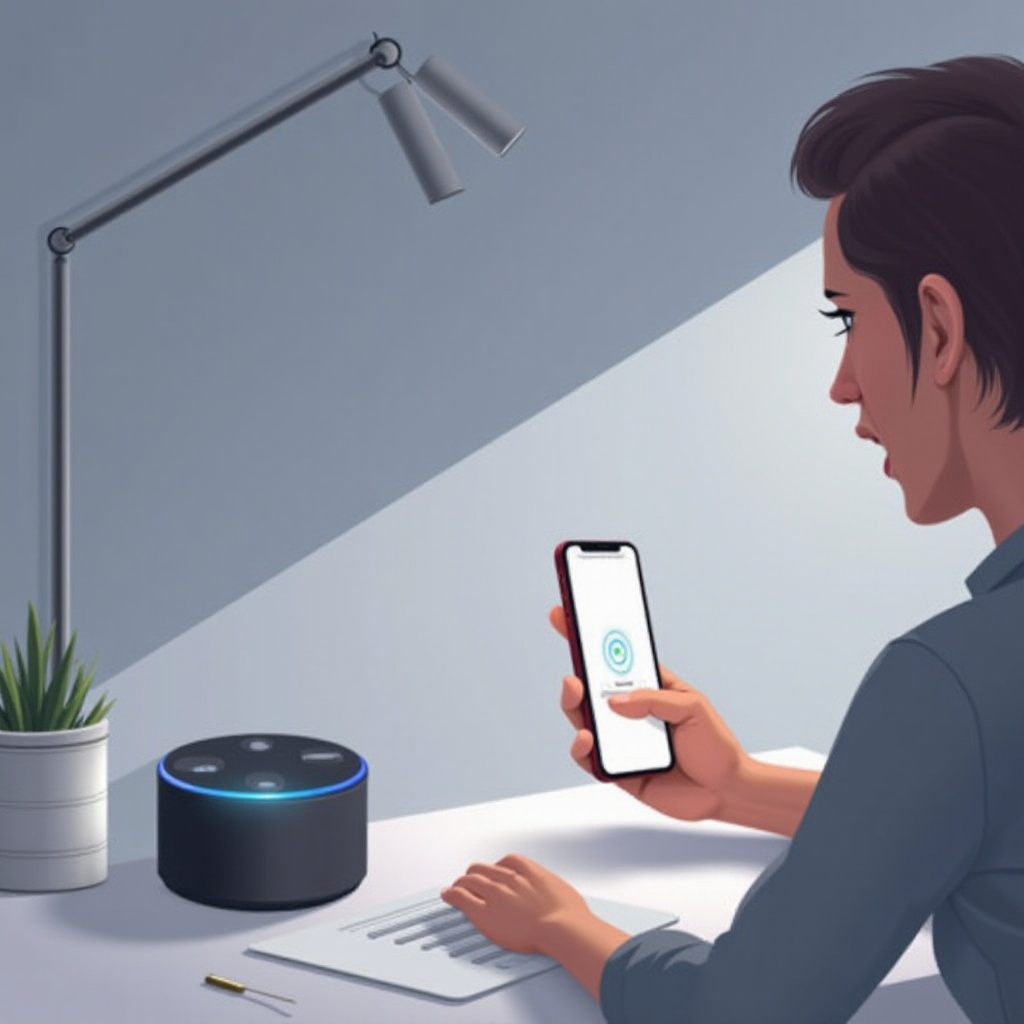
Troubleshooting Connectivity Issues
Sometimes, even after following instructions closely, Alexa might not connect perfectly. Here are common issues and their solutions:
- Common Problems and Solutions:
- If Alexa doesn’t connect initially, try restarting both your router and Alexa device.
-
Verify that your router is broadcasting on the 2.4 GHz frequency, as some Alexa models are incompatible with 5 GHz.
-
Enhancing Wi-Fi Signal Strength:
- Place your router in a central, open location within your home.
- Minimize interference by moving it away from walls or electronic devices.
- Use Wi-Fi extenders if necessary to boost your network’s reach.
Having navigated these connection issues, we can now focus on ensuring a lasting, strong connection.
Best Practices for Maintaining a Strong Connection
After ensuring a stable connection, maintain it by following these practices:
-
Network Placement Tips: Position your router strategically to allow maximum coverage across your space, ideally away from barriers.
-
Regular Software Updates: Keep your Alexa devices and router firmware up-to-date to gain performance enhancements and security patches.
With these strategies, your Alexa device is poised for optimal performance, delivering a better user experience.
Conclusion
Ensuring a robust internet connection for your Alexa device is crucial for unlocking its full potential. By following these steps to change and maintain your network configuration, you can enjoy uninterrupted services and explore the full range of Alexa’s capabilities.
Frequently Asked Questions
What should I do if Alexa doesn’t find my new network?
Try restarting your Alexa device and router. Make sure your device is within the router’s range and that the Wi-Fi is broadcasting.
Can I connect Alexa to a mobile hotspot instead of Wi-Fi?
Yes, activate the hotspot on your phone, and ensure your plan supports it. Connect Alexa as you would with any Wi-Fi network.
How do I know if my Alexa device needs a firmware update?
Check the Alexa app under device settings to see if an update is available. Follow the prompts to install it if needed.